RVsitebuilder 7 has login function for website and user separately such as;
https://user.rvsitebuilder.com/login, for website user.
https://user.rvsitebuilder.com/admin/login. for you and other website admins you set
You can start using the Built-in Login channel to let user register and login with their email addresses. RVsitebuilder 7 has social login channels to allow users to use one of their current accounts from Google Email, Facebook, Twitter, LINE to loginto your website in the quicker way.
Every website created in RVsitebuilder 7 will have Login button on Top Menu by default. This Login button will be used for user register and login.
It can be disabled and enabled in Design -> Topmenu -> Display Login button, slide the slidable button from here.
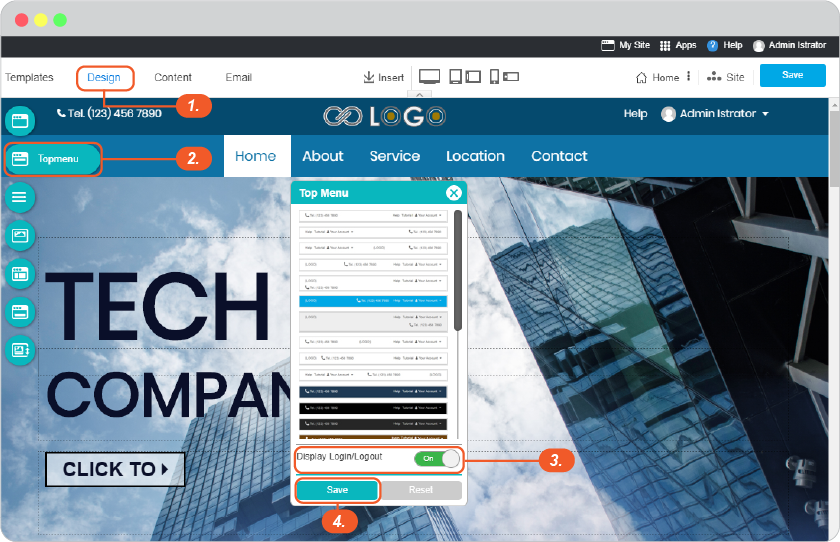
Image: Disable/enable Login button
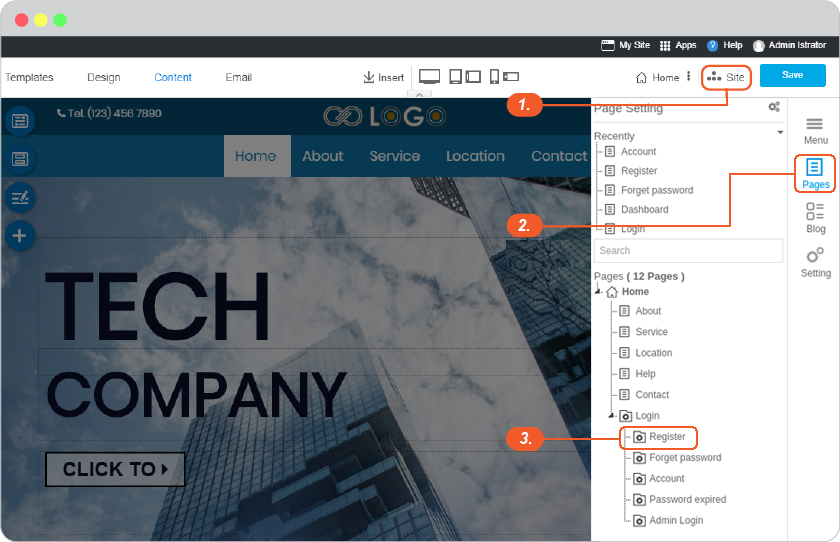
Image: Opening Register setting
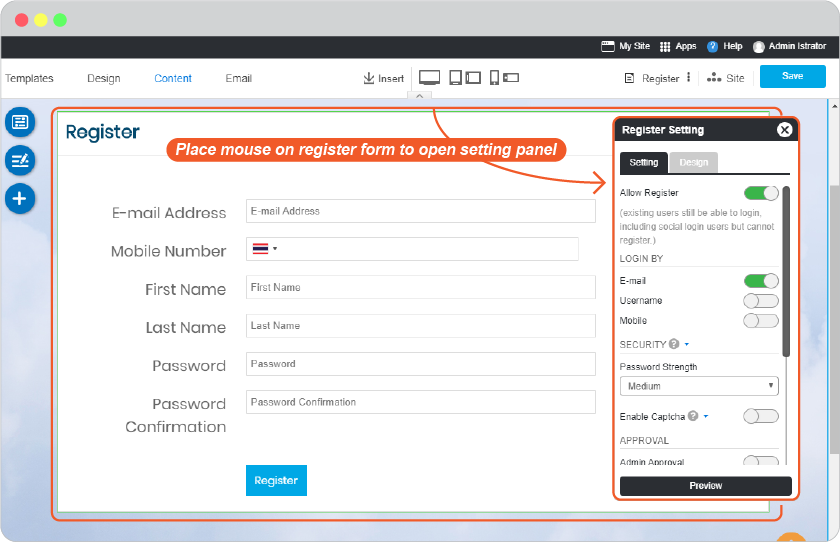
Image: Register setting area
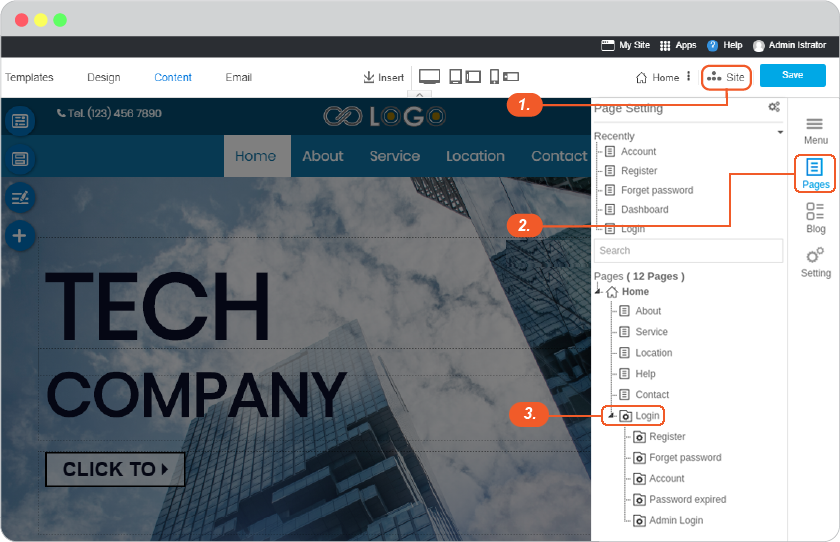
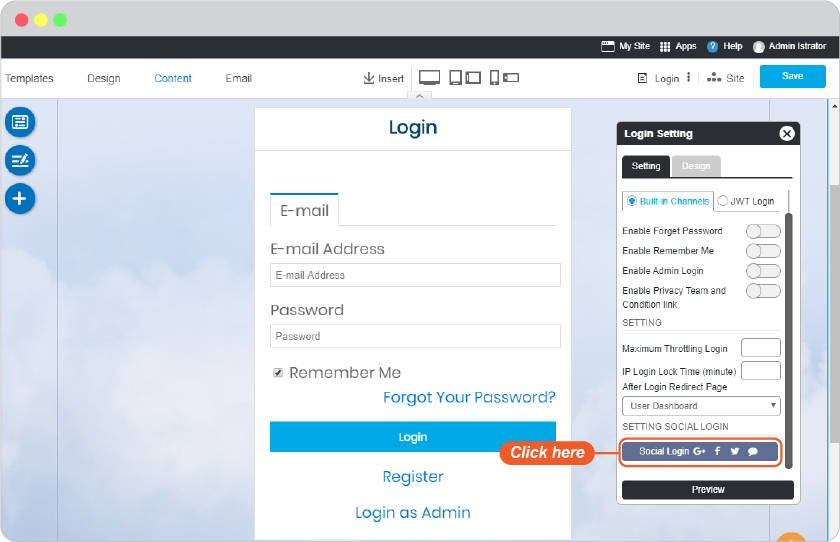
Image: Opening Login setting
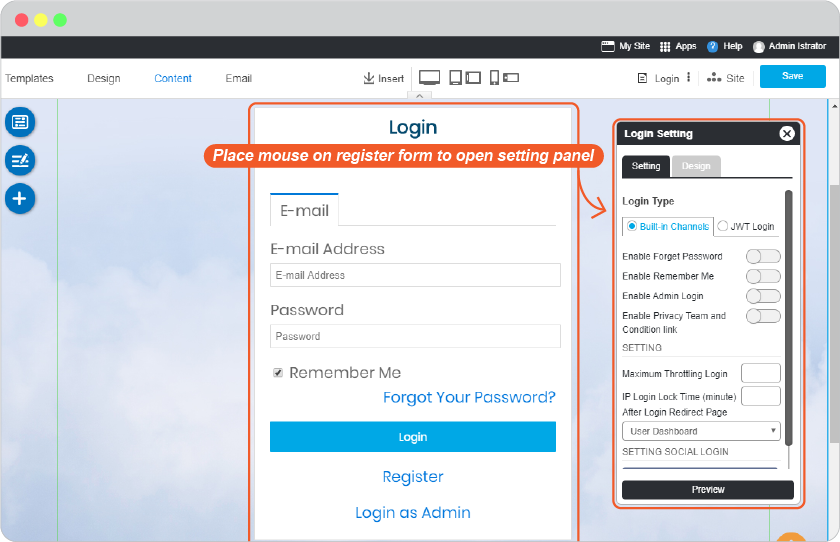
Image: Login setting area
You can start with Built-in Channels.
You can also enable Social Login to use together with normal Built-in in number 3.
4.1) Click on Social Login icon

4.2) Slide the slideable button on any or all the Social channels you want user to login to your website with.
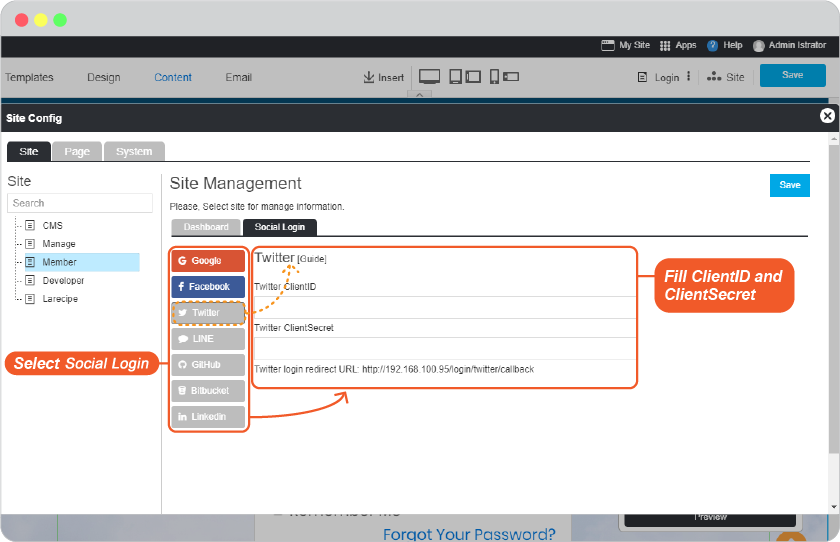

Google Login Setup for Built-in Channels requires Google API Setup. Don't worry if you don't feel familiar with Google API Setup, you can follow easy steps below.
Open Google Console website at https://console.developers.google.com/ . Login with your google email (Gmail) or register if you don't have one.
In Google APIs page, click Create for setting your new Google API.


For example
Product name shown to users : Calm Seas
Homepage URL : http://calmseas.netwaysite.com/

1) Select Web application
2) Create a name for recognizable
3) Insert Authorized JavaScript origins (Your website URL)
4) Insert **Redirect URL***
Please login to your website editor -> Site -> System, select "Login" under Member. Click on any area of Login widget to open Login Setting. Click on Social Login, and copy URL from Google Login Redirect URL

5) Don't forget to click Save.


Click Enable to activate the API.*


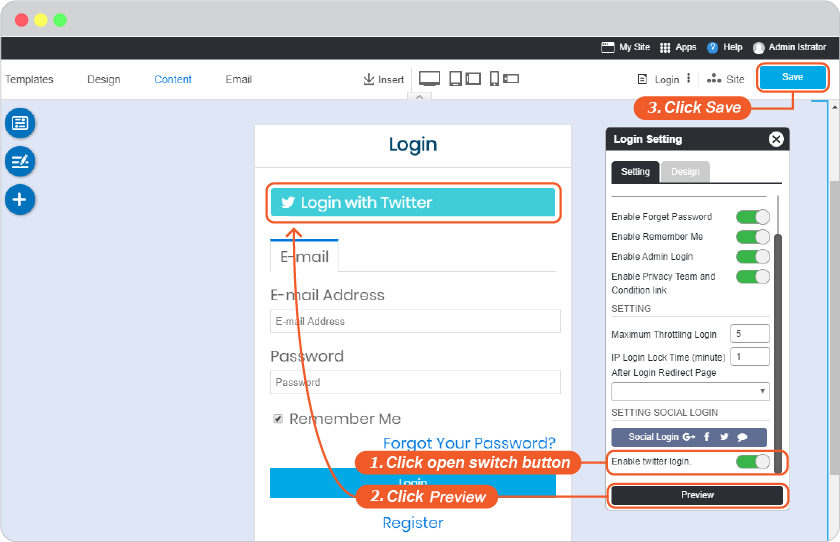
1) Slide the slidable button to activate Google Login.
2) Insert Client ID and Client secret from number 9 to Google Login Setup, and click OK to complete setting.
3) Click OK to add these values to your form.
4) On Login Setting, click "Apply" to apply your setting.

5) Click "Save" to save all of your setting above.
If Google Login returns error when visitors try to login, please contact your host provider to allow google rule_id in ModSecurity by this guide.
Go to https://developers.facebook.com/apps , select Create a New App.
Insert Display Name and Contact Email you want facebook to connect with your website. Then click Create App ID.
Insert the correct Security Check.
Next page, look for product Integrate Facebook Login and select Confirm.
At Facebook API management dashboard, find Facebook Login, and insert OAuth redirect URIs and Save Changes. (You can find OAuth redirect URIs in your website editor -> Site -> System Pages -> Login, click on Login form to open Login setting, look for Login Callback URL for facebook.)
Go to Settings -> Basic, to insert Privacy Policy URL. If you have a page to provide Privacy Policy on your website, if not, you can insert your website URL.
Select + Add Platform to continue.
Select Platform as Website.
Insert your website at Site URL and click Save Changes.
Next page, set the Status as On.
Confirm the setting.
Look for App Secret, and select Show.
Facebook API management page will display App ID and App secret.
Go to website editor -> Site -> System Pages -> Login, click on Login form to open Login setting, to enable Facebook Login Setup.

1) Slide the slidable button to activate Google Login.
2) Insert App ID for Facebook Client ID and App Secret for Facebook Client Secret.
3) Click OK to add these values to your form.
4) On Login Setting, click "Apply" to apply your setting.

5) Click "Save" to save all of your setting above.
Go to https://apps.twitter.com/, select Create New App.
Insert all the information required. (You can find Callback URLs in your website editor -> Site -> System Pages -> Login, click on Login form to open Login setting, look for Twitter login redirect URL.) And click Create to complete the setting.
Once the application created, select Keys and Access Tokens.
Twitter API management page will display Consumer Key (API key) and Consumer Secret (API Secret).
Go to website editor -> Site -> System Pages -> Login, click on Login form to open Login setting, to enable Twitter Login Setup.

1) Slide the slidable button to activate Google Login.
2) Insert Consumer Key for Twitter Client ID and Consumer Secret for Twitter Client Secret.
3) Click OK to add these values to your form.
4) On Login Setting, click "Apply" to apply your setting.

5) Click "Save" to save all of your setting above.
To setup Line app as a login channel for your website, you will have to register your email address with Line first.
Register here: https://developers.line.biz/en/docs/line-login/getting-started/
Then setup the login by following.
Login to line developer console at: https://developers.line.biz/console/
Click Create New Provider.


App name App description App type, select Use Web Email address, add the email address of admin.


(You can find Callback URLs in your website editor -> Site -> System Pages -> Login, click on Login form to open Login setting, look for LINE login redirect URL.)


Check boxes for functions, and click Submit.


1) Slide the slidable button to activate Google Login.
2) Insert Channel ID for LINE Client ID and Channel Secret for LINE Client Secret.
3) Click OK to add these values to your form.
4) On Login Setting, click "Apply" to apply your setting.

5) Click "Save" to save all of your setting above.